
On this page
Add a drawing
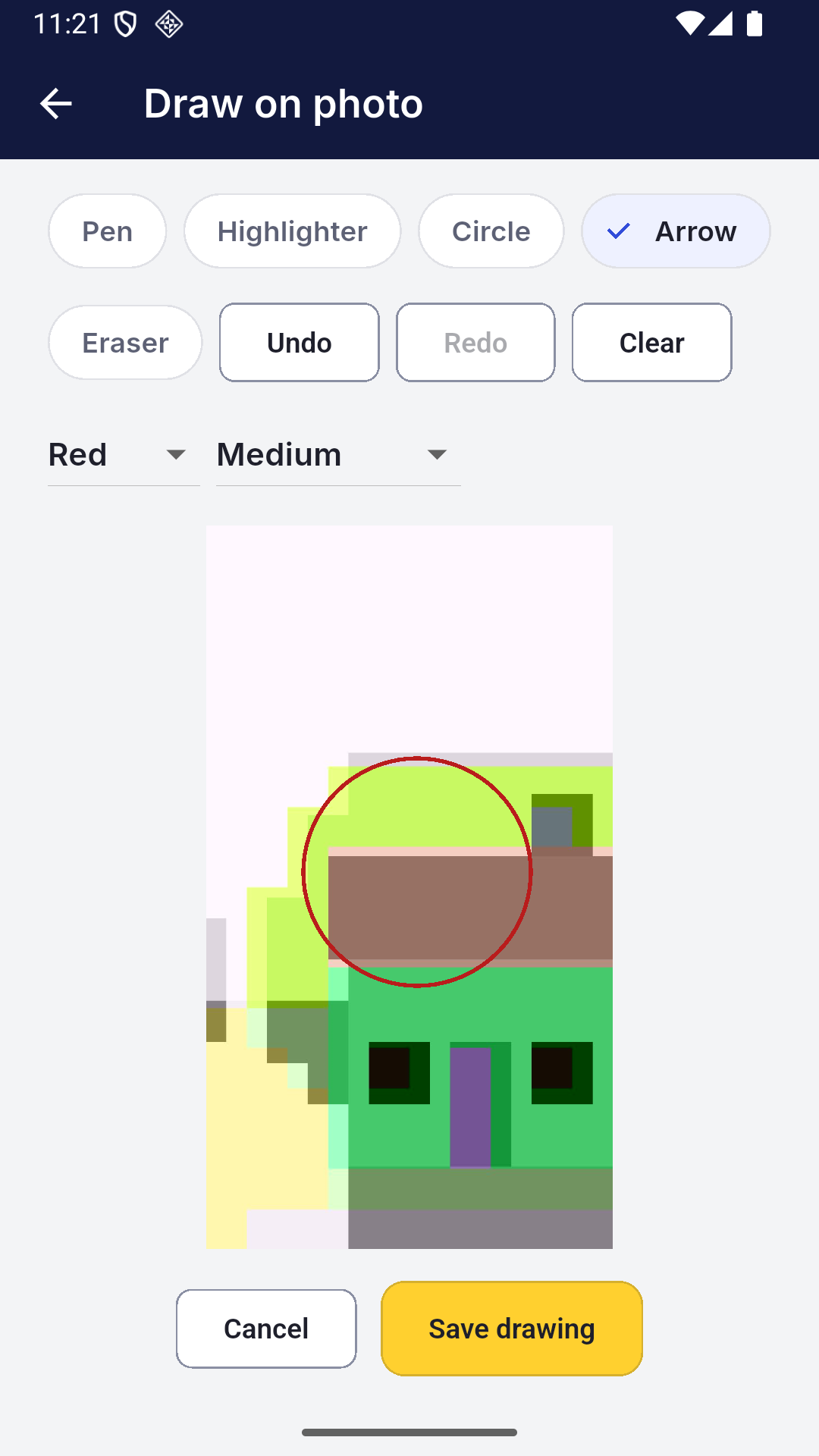
- Open the photo’s observation and tap Draw on photo.
- Choose Pen, Highlighter, Circle or Arrow.
- Choose a colour and stroke width, then draw on the photo.
- Use Undo, Redo or Eraser to adjust it.
- Tap Save drawing and check the photo before exporting.
Understand the limits
The eraser removes whole strokes. Reopen the drawing to edit it later.
Drawings remain separate from the source photo. Clear opens a confirmation before removing all strokes.
If you leave before saving
Read the save prompt. Save the drawing or keep editing instead of discarding work you need.
Need more help? Get help with a problem.